Hosting Guide
Welcome to the new Hosting Guide.
We have made some changes to the way the side games are managed in an attempt to make things easier and more clear for the players. Below is a brief description of how players will purchase for and view games setup by hosts. Please take some time to review the information posted and if you have any comments, questions or concerns, do not hesitate to let us know by submitting a trouble ticket to the helpdesk at any time.
Summary
- View Games | A list of all games a host has open, closed and completed.
- Ways to Send to a Game | Players who wish to join an open game can do so by selecting the online host, then open game they wish to join and finally, sending funds for that game.
- How to Send to a Game | There are different options to send for each game style. Some games require sets, some don't and some have auto-generated sets.
- View Game Details | To view a list of players, sets, total prize pool and winners (if completed) for a game.
Viewing Host Games
On the hosts' Game Statistics page, games are listed as open (accepting purchases and sets from players), closed (in play, no more players can purchase for the game) or completed (game is finished and winners have been paid). A host will have a maximum of 5 games active (open or closed) at any one time.

Ways to Send to a Game
When a player wishes to purchase for a game, they visit the credits page and elect to send funds to a host in one of three ways.
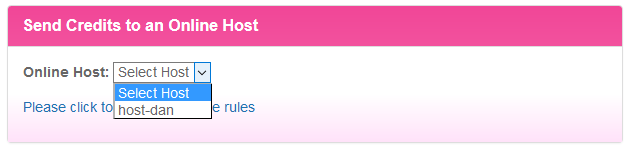
1| The first option is to select an online host from the drop down menu.
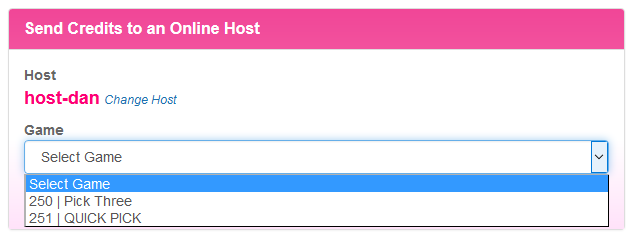
Once a host has been selected, the player then chooses a game from the list of available games.
2| The second purchase option is to visit the credits page and click the "View All Hosts" button. This will bring up a list of all hosts, including any who are offline.

Once a host has been selected, you will be shown the hosts' Game Statistcs page and can select from any of the open games available by clicking the "details" beside the game.

Finally, click the "Send For This Game" button to finalize your purchase for the game.

3| The final purchase option is to go the "Send Funds" page and click on the "View Open Games" button. This will bring up a list of all open games from any hosts.
Once listed, the player can either click the "Send Funds" button to choose the game they wish to send for or click the "Details" link beside any of the open games to send directly to that game.

How to Send to a Game
When the host creates a game, they have a few options that can change how a player purchases for a game.
When a game requires players have to have sets, the host can have the players input their own numbers for every purchase or set the game to auto generate which will automatically choose a random set on the players behalf.

Purchase with Player Provided Numbers

Purchase with Auto Generated Numbers
For games that offer Buy One Get One Free, players will be able to provide two sets for every purchase they make.

Purchase with Two sets per send
If a host has created a game with a "Mixed" purchase price (i.e donation games), players will have the ability to input their own purchase price when they buy in for the game.

To view different examples of player sends Click Here!
View Game Details
To view the current status of any game, simply click on the Details link shown beside any of the created, closed or completed games. The game details include the price per entry, the total prize pool, the amount paid out to the winners and a list of all players who have purchased for the game (as well as their numbers if applicable).

Game Details of a closed game

Game Details of a completed game